How to Use PSFlow
For PSFlow 1.0.35: install the plugin, record your canvas, then review and export in the Video Workbench.
1. Installation
- Download the installer for your operating system.
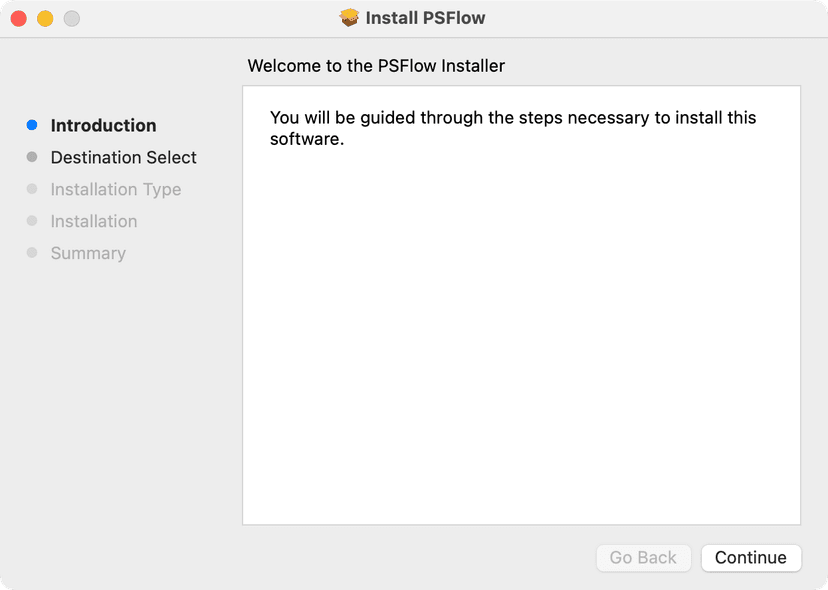
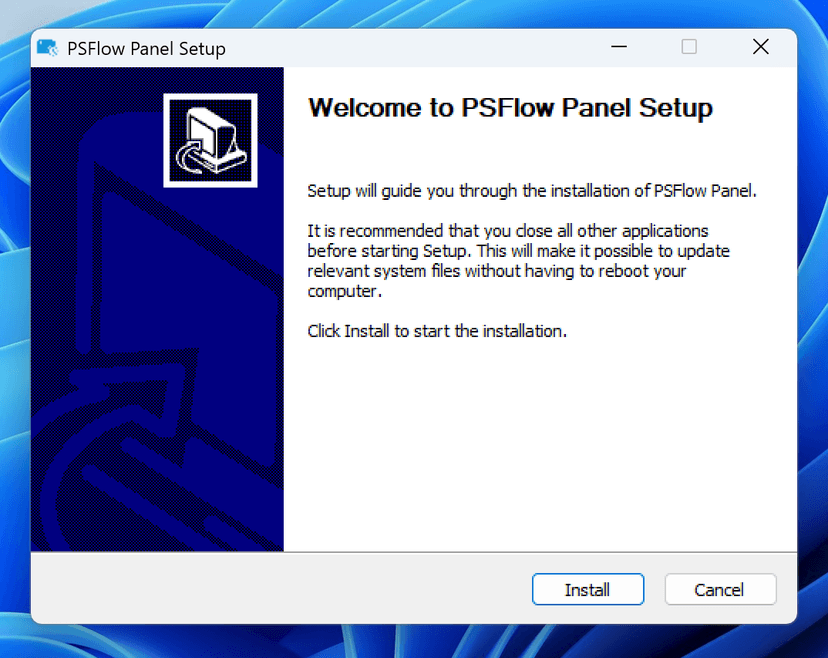
- Run the installer and follow the on-screen instructions.
- Restart Photoshop if it was running.
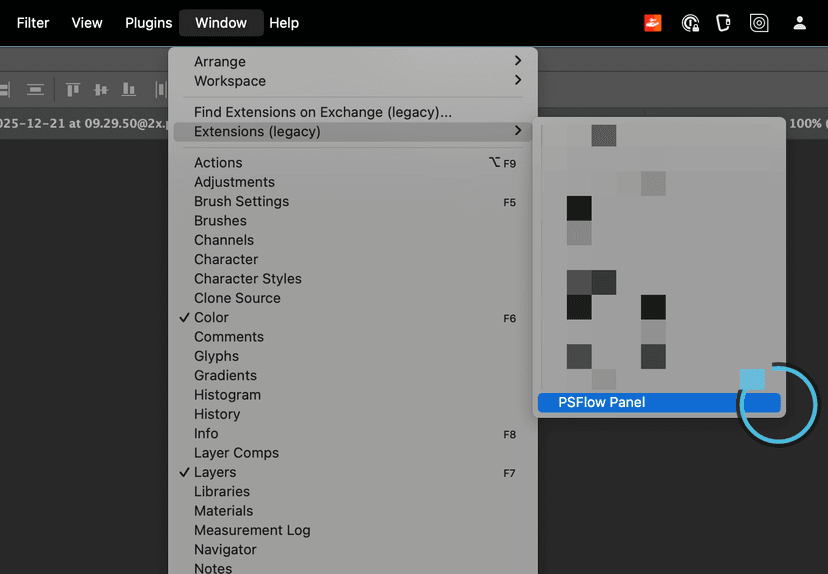
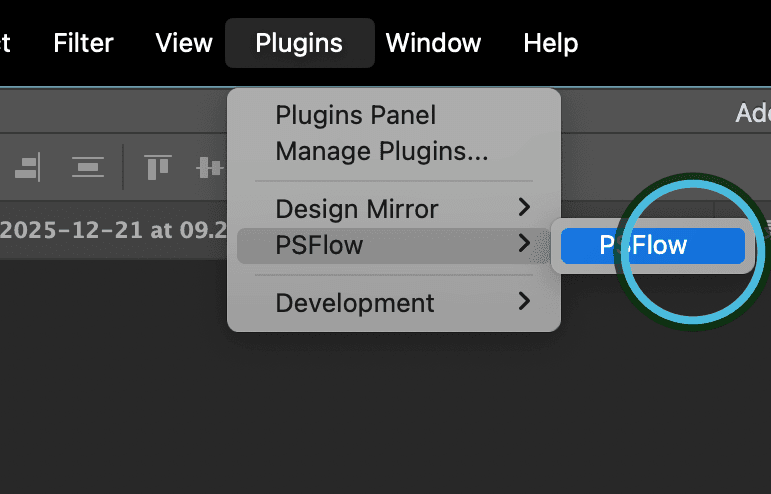
- You'll find PSFlow under Window > Extensions > PSFlow Or Plugins > PSFlow.
2. Recording Your First Timelapse
PSFlow is designed to be simple. Here's how to start:
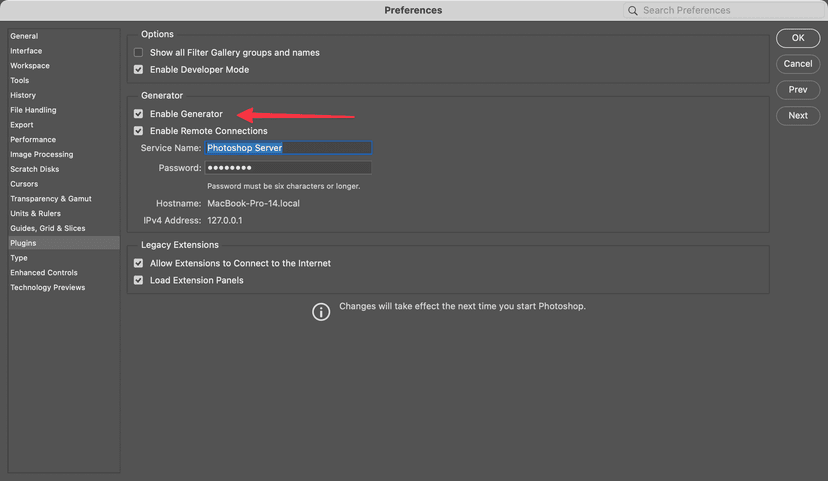
- Enable Generator in your Photoshop preferences.
- Open the PSFlow panel in Photoshop.
- Click the big Record button.
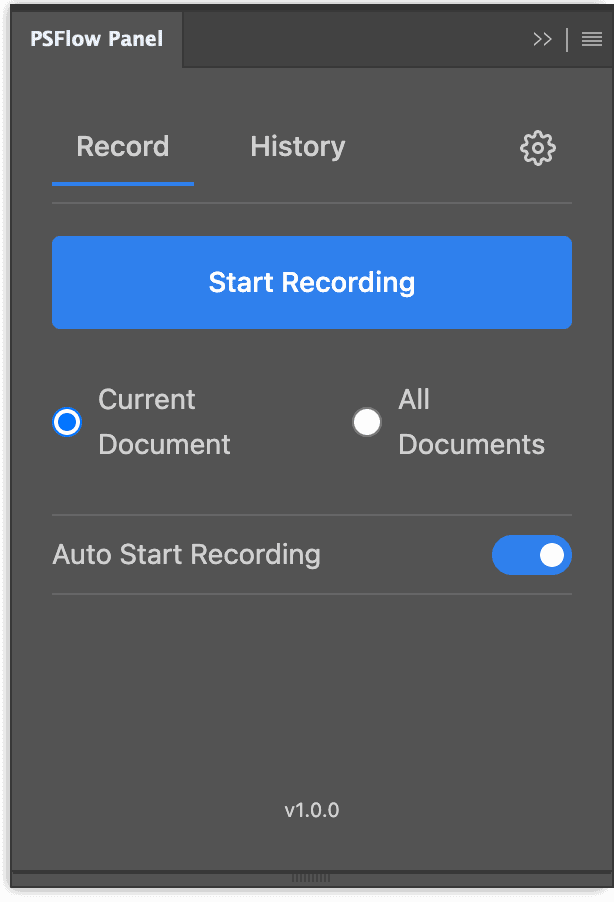
- Start drawing! PSFlow will automatically detect your canvas changes. You can close the panel while painting; the plugin will continue recording silently in the background.
- When you're done, click Stop.
3. Edit and export in the Video Workbench
In PSFlow 1.0.29 and later, editing and export happen in the Video Workbench:
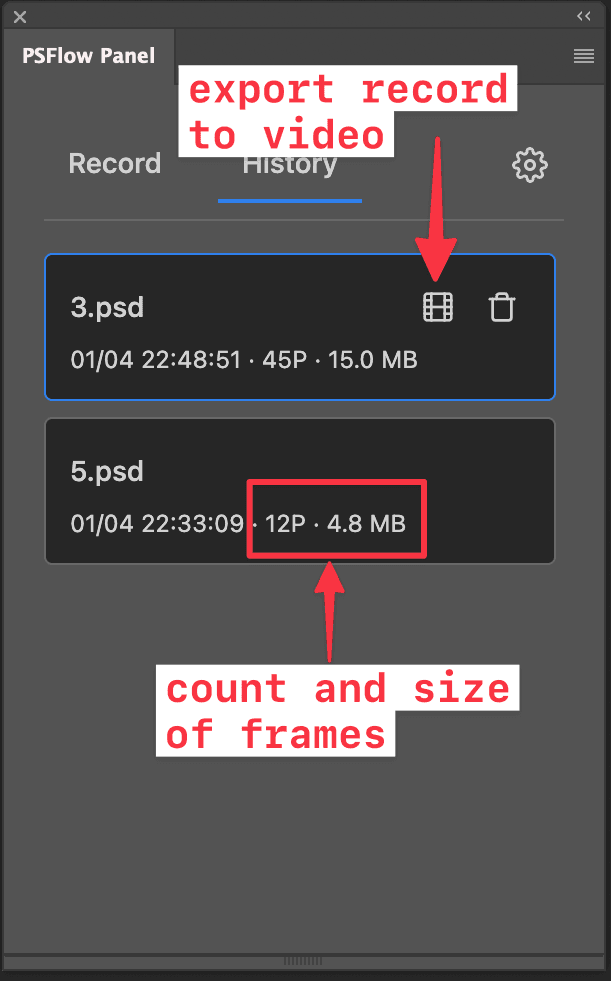
- Switch to History tab to find the record of your file.
- Click Play on the recording to open the Video Workbench in your browser.
- Preview the session. Trim the start and end, exclude unwanted frames, or restore excluded frames. Adjust the intro and outro if needed.
- Open Export. Set the target video length, aspect ratio and resolution. Resolution presets apply to the short side and do not upscale your recording; check the framing in the preview.
- Choose MP4 with Standard or High quality for sharing. For an archival copy, choose Lossless, which exports MKV. Lossless export cannot recover detail already lost in JPEG frames.
- Choose the file name and save location, then export. Open the saved video and check the beginning, end and framing before sharing it.
4. Settings
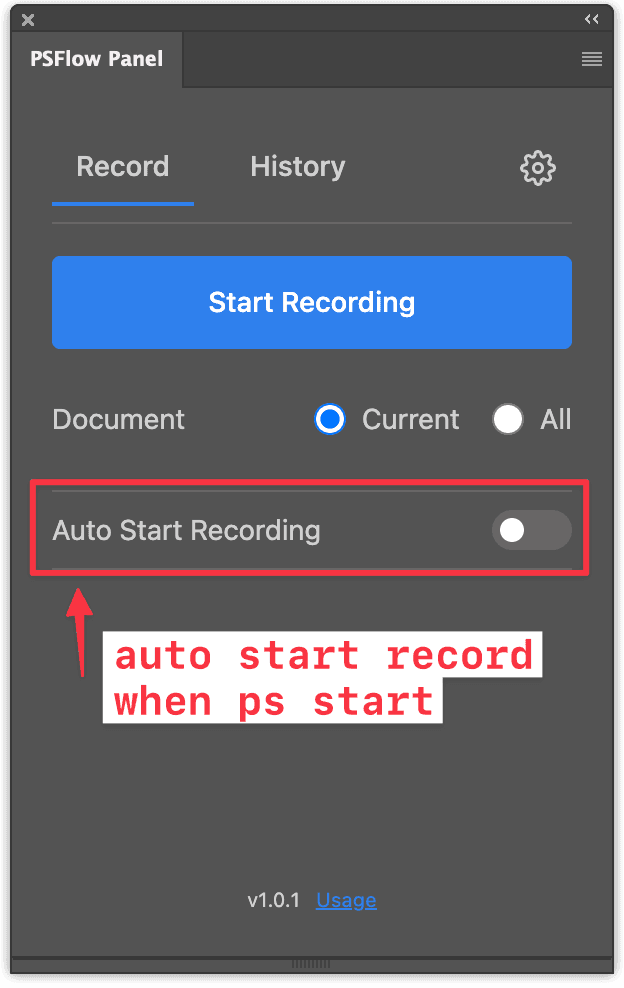
- Auto Start Recording: When enabled, recording will automatically start every time you launch Photoshop.
- You can check the recording frame count and size in the history tab.
- Recording Intervals: This value specifies the minimum time interval for taking snapshots. This prevents capturing an excessive number of images during long painting sessions, saving storage space. Setting it to 0 means a snapshot is taken for every action.
- Frame format: To preserve source pixels for a lossless export, choose PNG in the recording settings before recording. JPEG uses less space but discards detail that export cannot restore.